Best Practices for Blocking Pendo Guides

UPDATE: This is now officially published here: https://support.pendo.io/hc/en-us/articles/39740252847899-Block-all-Pendo-guides-in-specific-situations
In some situations, you may want to block all Pendo guides from displaying for a specific customer or in specific environments. This article will provide best practices for web applications where Pendo is installed via the install script or the browser extension . This article is focused on preventing all Pendo guides from displaying. If you need to display some guides and prevent other guides from displaying, use Segments instead.
Block all guides for a specific customer (install script & extension)
You cannot show Pendo guides to a specific customer, or a customer has asked to opt out from all Pendo guides.
Recommendation (install script & extension): Enable the ‘Hide guides” setting, which can be applied to either specific visitors or accounts in Pendo.
- Go to People > Accounts and click into the specific account that you want to block all guides for.
-
In the “Pendo Settings” section at the top, look for a setting called “Hide web guides from this account”. If you don’t see this setting, contact Pendo Support and ask them to enable the subscription setting: “Guide Exclude List per Visitor and Account”.
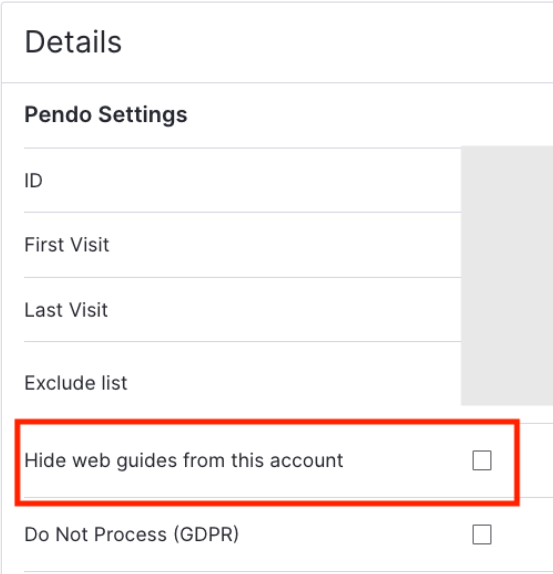
- Enable this checkbox for the account. This will prevent all Pendo guides from appearing for visitors associated with this account.
Additional Notes:
- You can also find this checkbox on visitor records. On visitors, the setting is called “Hide guides from this visitor”
- If you need to update multiple records, you can also enable / disable this checkbox via the API: Opt-out a Visitor or Account From All Guide Display.
Block all guides in a particular environment (install script only)
You want to disable all Pendo guides in a particular environment or instance of your application.
Recommendation: Modify the installed Pendo snippet to add guides.disabled: true.
- Ask your developers to modify the Pendo snippet installed in that environment or instance of your application. Within the initialize function, add the additional guides object shown below. This will block all Pendo guides from appearing wherever this modified Pendo snippet is installed
guides: {
     disabled: true,
},
See a more detailed example configuration here.
Block all Pendo functionality for a specific customer or environment (install script & extension)
Blocking all Pendo functionality means that no data will be collected and no guides will be displayed. If you need to do this for specific customers or specific environments only, your developers can modify your current installation.
Recommendation (install script): Ask your developers to modify the Pendo snippet currently installed in your application.
- Add logic around the initialize function so that Pendo only turns on for certain customers or certain situations. See Conditionally initialize Pendo for more information.
- Remove it from any environments where you don’t want Pendo functionality.
Recommendation (extension):
- Deploy the extension to specific customers only. See the IT guide to deploying the Pendo launcher for more details.
- Specify which domains Pendo is allowed to track for each application. See Add and edit domains for more details.
Additional Notes: If you want to temporarily disable all Pendo functionality at the application level, follow these instructions instead: disable a web app (install script) OR disable an extension app (extension).
Comments
Post is closed for comments.